
Stickers
- Mohamed Khaled

- Sep 19, 2018
- 3 min read
Updated: Sep 22, 2018
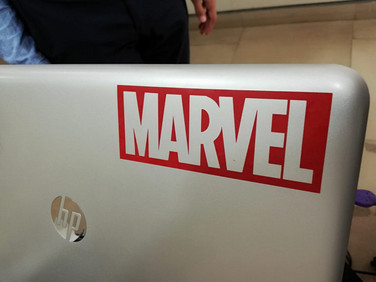
This task was mainly about how to use the Roland machine and the Cut Studio, how to do the design, print it, and cut it. so we started with seeing what is the Vinyl Cutter GX-500 is, and how to start it, measure the martial (Roll, or Piece), and how to get this readings on the software (Cut Studio), then i learned how to import the image i need to cut then extract the Image outlining, then put it in the best place to cut or click Move in the toolbar, after that click Cutting then see the result on the Roland machine.





What is Roland GX-500 vinyl cutter?
its an automatic cutter cut on Paper, Vinyl, Electronic Circles, and Flexible Coppers.
How to use the Roland GX-500 cutter?
1. The machine interface (control area).
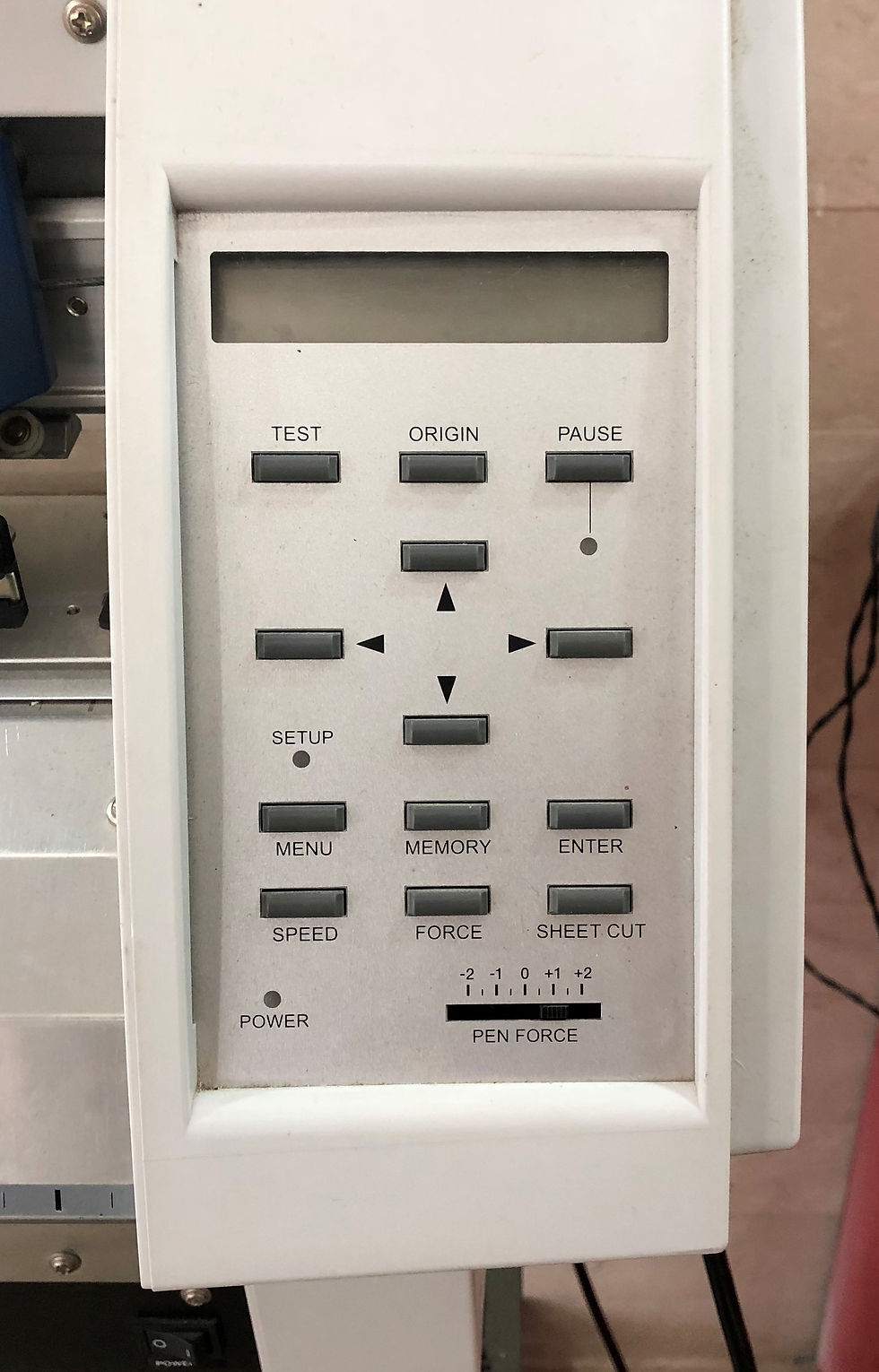
2. Power on the machine ( you will find the power button under the control area).

3. The interface after powering on.
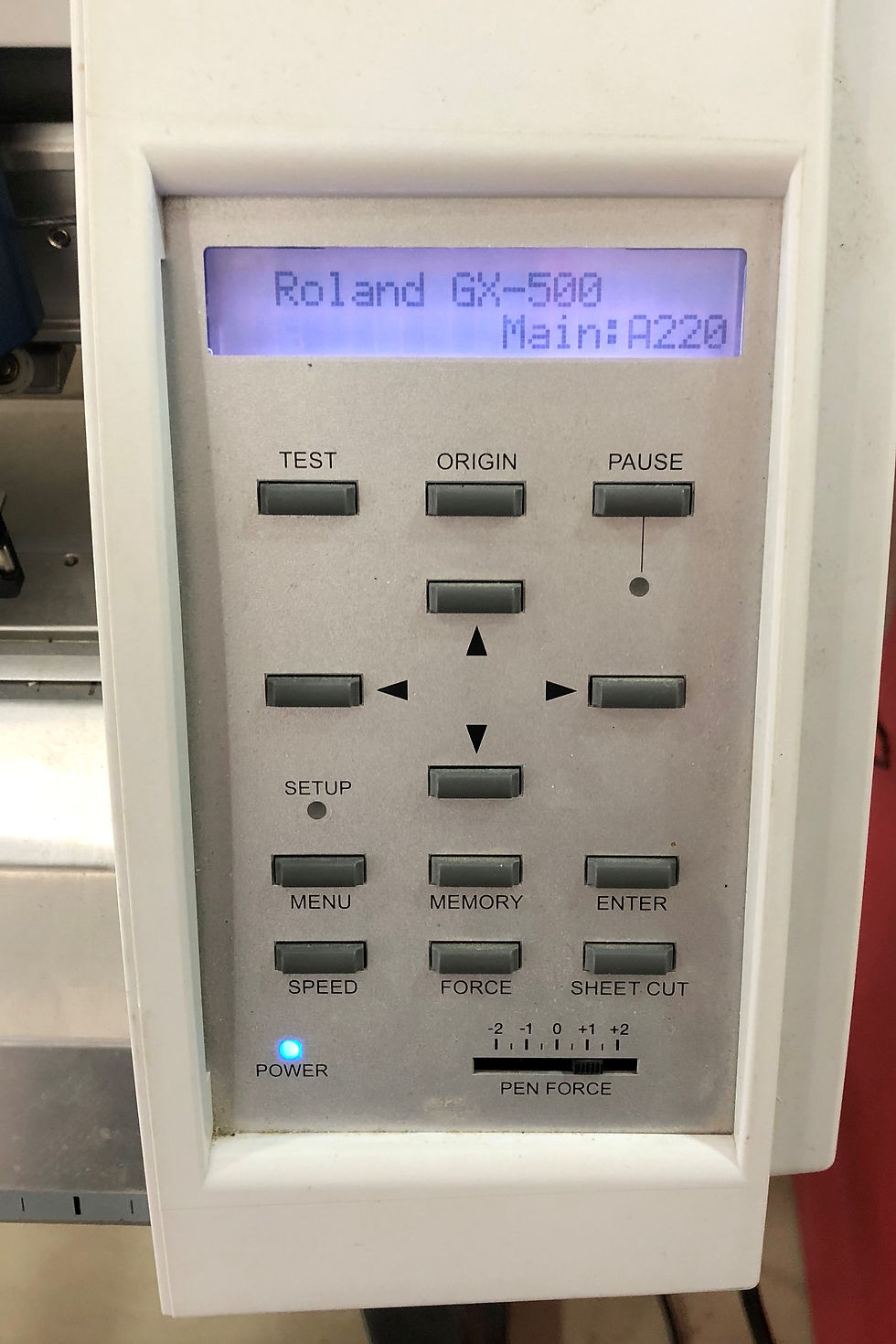
4. You then have to measure the material you want to cut, steps:
a. place the clambers in a good place, you must place the first and third one on a sensors, the machine will measure the distance between them.
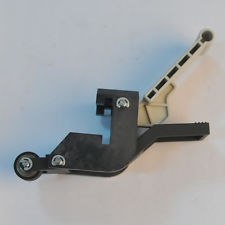


b. you have three options for measuring a material.
1. Roll: for cutting on a long roll of material, it only measure its width.
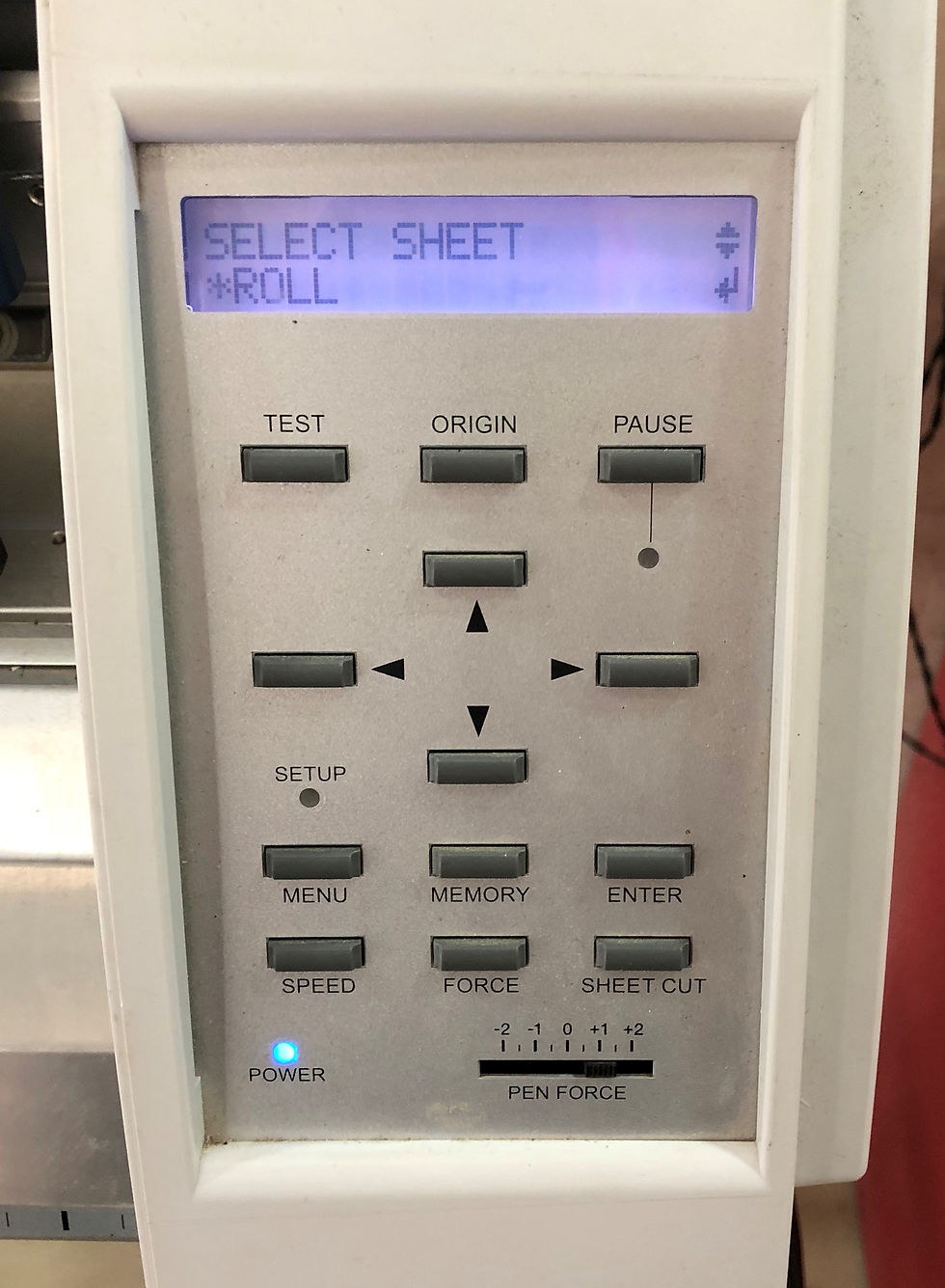
2. Piece: to measure the length and width of the piece you are using.
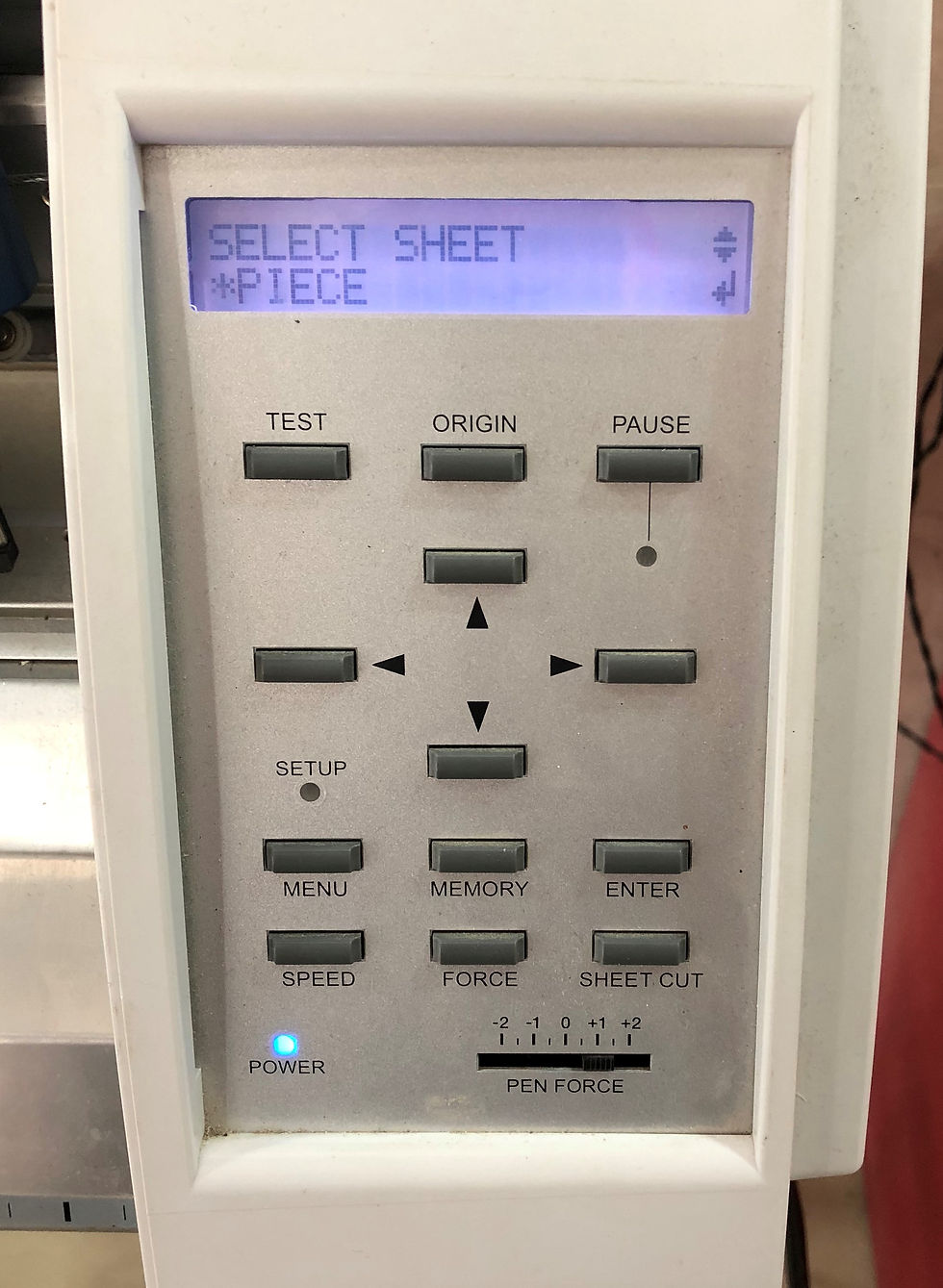
3. Edge:
How to get your file ready (Image) for cutting?
1. Chose a suitable image you want, you may get it from the internet, or you may have it on your computer.
2. Open Cut Studio.

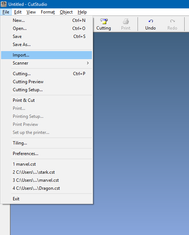
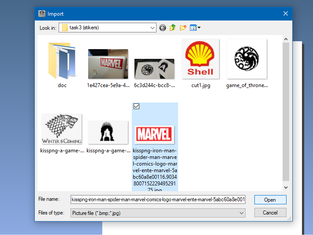
3. Import your image:
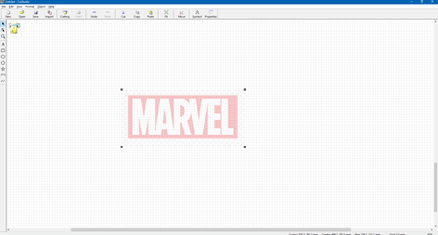
by clicking on File then Import, it will open another window for you to browse your image, you chose your image then click open.



4. Image outlining:
by clicking right click on the image, it opens a drop down menu, chose Image outline from it, it open another window for Image outline, you can change the Alignment Image Density (it control the darkness of the image to extract the lines from it) to your preference, then click Extract Contour Lines it will extract lines you will see it in a different color (Blue), you can change the Image Density again if it is not acceptable for you, then click OK, and the outline will be on the image, move it away from the image, then delete the main image that you won't use and you will be left with the outlining.



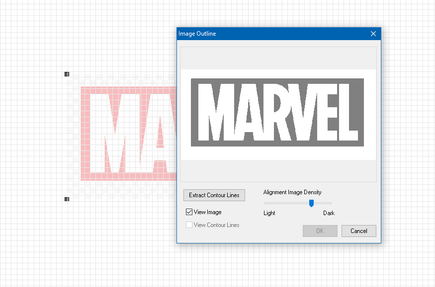


5. Put the outlines in position to print:
Click on your outline design then click Move from toolbox (this will move your design to the main point to reduce the waste of printing material.



6. cutting (print) your design:
Click on cutting in the toolbar or from the file drop down menu, it will open another window for you to choose your cutter or printer, after choosing your machine you click properties to install the size of the material you input it in the machine (you can put it manually or take it from the machine).




7. Wait till the cutting is finish.
How to get your final result from the machine output?
a. You will have to start removing the extra papers from the design.
b. Use a cutter or your finger.
c. Remove the little parts to show more details.
d. Put on a see through tab, make sure you cover all the space.
e. Start removing the take with the sticker attached to it.
f. Chose a clean surface you are going to put the sticker on.
g. But the sticker on the surface and hold it in place carefully.
h. Start removing the tab with 180 angle to make sure that the sticker won’t be removed with it.
i. Clean any leftover of the tab.
j. You are now remained with the final result of the sticker, WELL DONE.

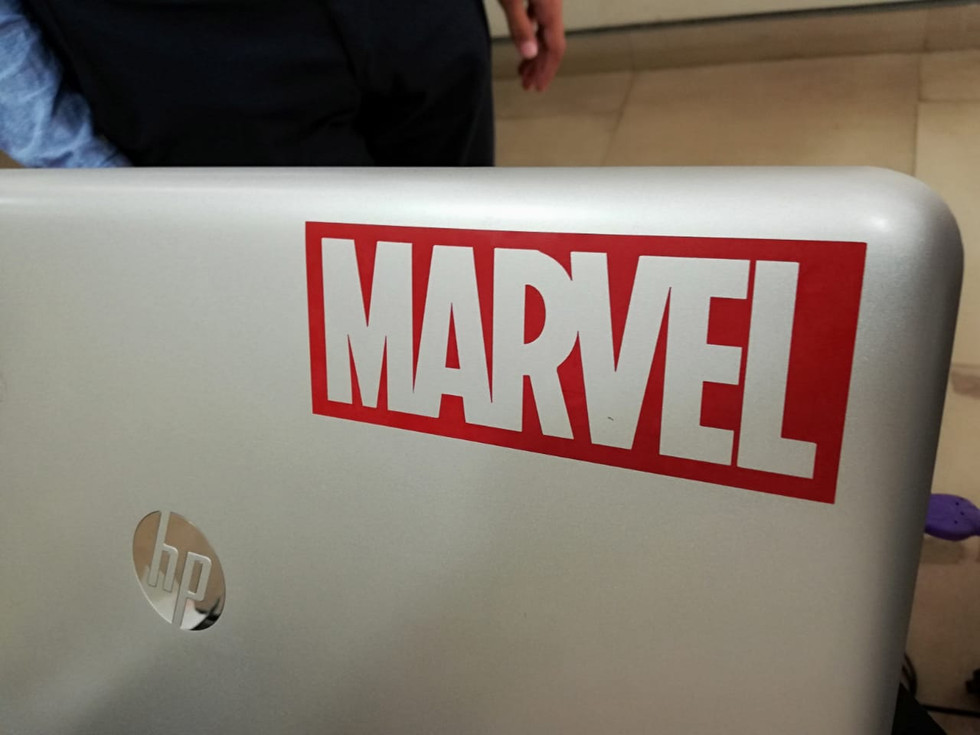


Link: https://drive.google.com/open?id=1l-PUPp1M9I_3NV_EUzGx_InM_1S2Cw9h


Comments